 Nest
A time zone for each family
So “9 am” and “every Monday at 5 pm” are right wherever the family lives. The first phone to open the new version sets it, and an admin can change it on the Family page.
Nest 2.0 adds shared family budgets and bills, a rebuilt expense tracker, an I’m at the store alert, a notification bell and repeating events. Still no ads, no bank connection, and notifications are the only permission it needs.
Version 2.0 · November 2026
Nest 2.0 collects every change since version 1.1, so if you last used an earlier version, all of this is new to you. Update Nest in the App Store or Google Play to get it.
Set a monthly budget for each category or for the whole month. The family is told at 80% and when it is passed.
Family budgets BillsPremiumAdd a bill with its due date and how often it repeats. The family gets a reminder at 9 am on the day, and Mark paid records it.
How bills work InsightsPremiumSee how the month compares with your family’s usual spending, with a forecast for the month.
What insights are A rebuilt expense trackerFreeOverview, Recent, Balances and Bills tabs, 12 categories and a chart of where the money went.
Family expenses I’m at the storeFreeOne tap on the Shopping tab tells the rest of the family you are at the store, so they can add what you forgot.
How it works A notification bellFreeThe bell on Home keeps your family’s notifications from the last 5 days, so nothing is missed.
About the bell Repeating events, reminders and tasksPremiumRepeat daily, on weekdays, weekly, every 2 weeks, monthly or yearly, with an optional end date.
How to repeat Calendar reminders for everyoneFreeReminders go to the whole family, from the server, so they arrive even if the person who made the event has their phone off.
Remind the family Choose your currencyFreeA family admin can choose the family’s currency from more than 50. Every amount is relabeled, and nothing is converted.
Change currency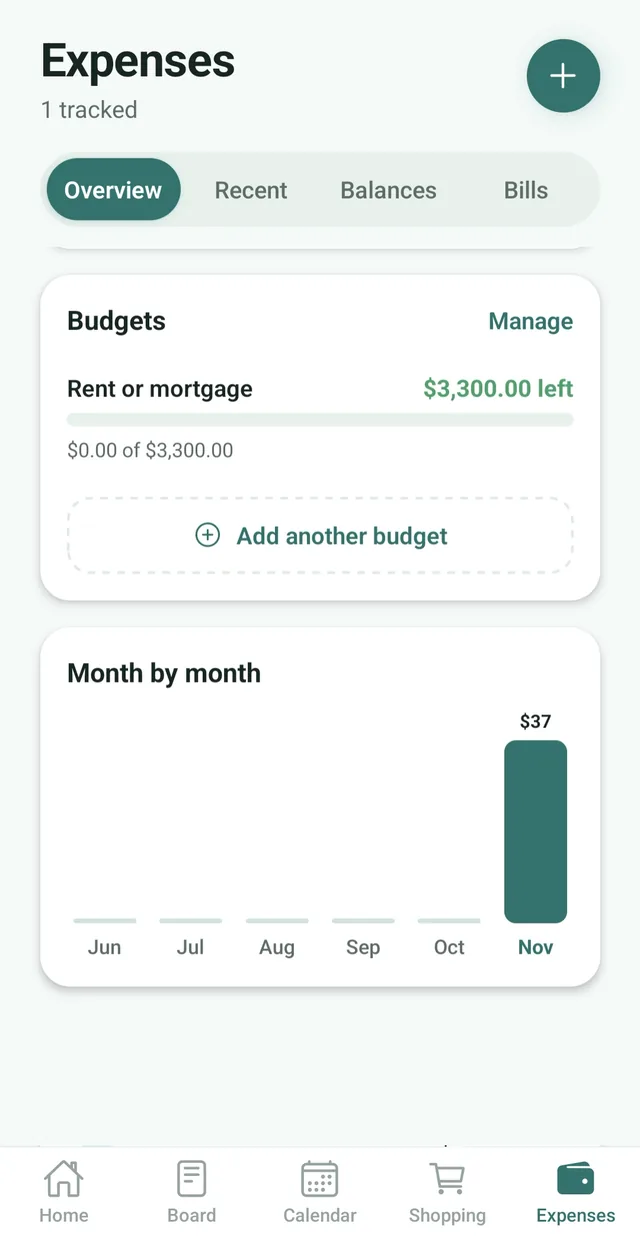
Set a budget for each category, such as groceries or rent, or one amount for the whole month. Nest counts expenses against it as they come in and shows what is left. Under 80% it looks normal, from 80% it turns amber, landing exactly on budget shows green, and going over turns red.
The family is told when a budget reaches 80% and when it is passed, once each per budget per month. Budgets start again on the 1st, and anyone in the family can set or change them. On the 1st you also get a summary of last month’s spending.
For payments that come round regularly, open Expenses, tap Bills and add each bill with its due date, how often it repeats and, if you like, the amount. The family is reminded at 9 am on the day it is due, and Mark paid adds the payment to Recent and to that month’s total.
Insights compare the month with your usual spending, for example “Groceries are 18% above your usual”, and give a forecast for the month. They give figures and comparisons, not advice.
See family budgets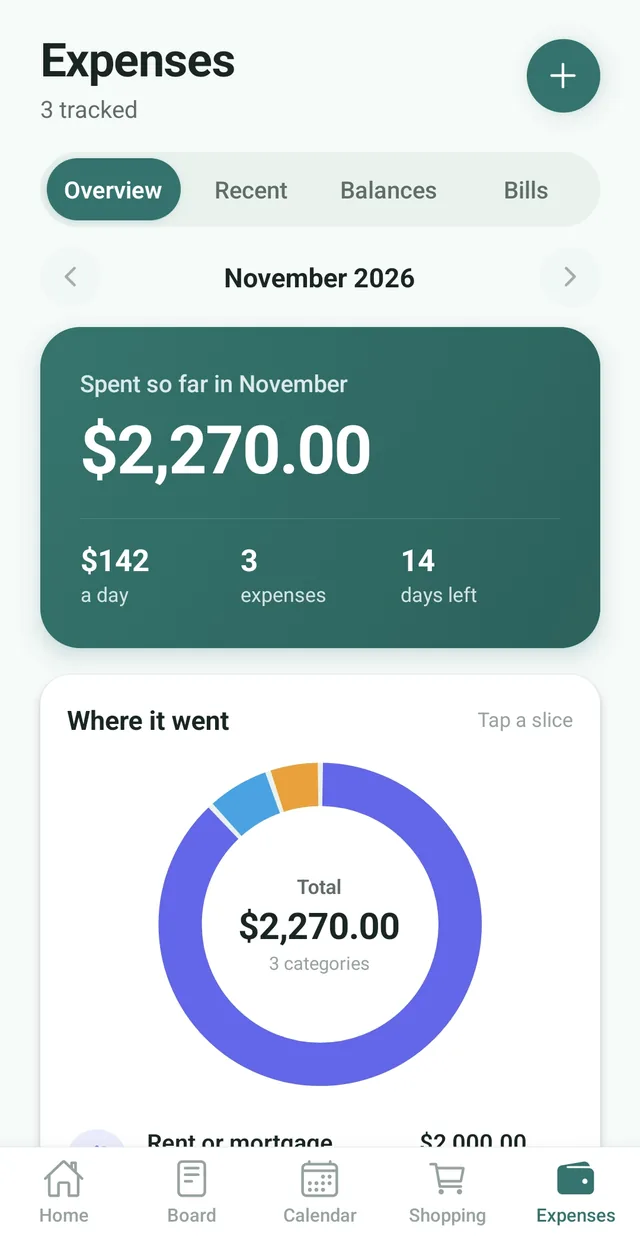
Expenses has four tabs: Overview, Recent, Balances and Bills. The Overview shows the month so far, how it compares with last month and a donut chart of where the money went. Tap a slice or a category to see the expenses behind it. Premium adds the last six months as a chart, who paid what and every category.
There are 12 categories, and Nest suggests one as you type the description, for example Costco becomes Groceries. Anyone can move an expense to a different category, and only the person who paid can edit or delete it.
Balances show each family member as owed (green, with a +) or owing (red), and suggest the fewest payments that settle everyone up, such as “Sara pays Ali $42.50”. Each has a Mark paid button. Expenses saved with Just record it do not count towards balances. Balances are free.
See family expenses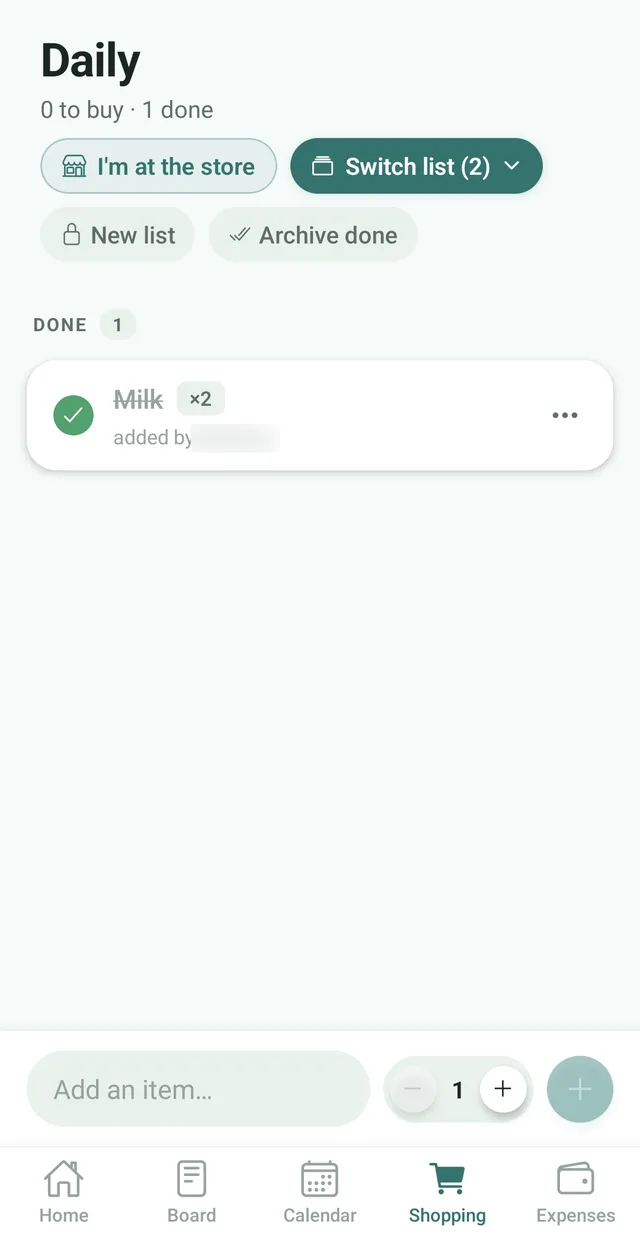
On the Shopping tab, tap I’m at the store. Everyone else in the family gets a notification: “[Name] is at the store. Need anything? Add it to the shopping list now.” If the family has more than one list, it names the list.
For the next hour, items the others add reach the shopper within a minute or two instead of the usual wait, and they appear on the shopper’s list live. You can announce once every 20 minutes, so a double tap does not notify everyone twice.
It is free for every family, and it only shows when the family has more than one member. When someone adds to the list the rest of the family gets one notification about 5 minutes after they stop, so a big shop arrives as one message, such as “Sara added milk, eggs, bread and 2 more”.
See the shopping list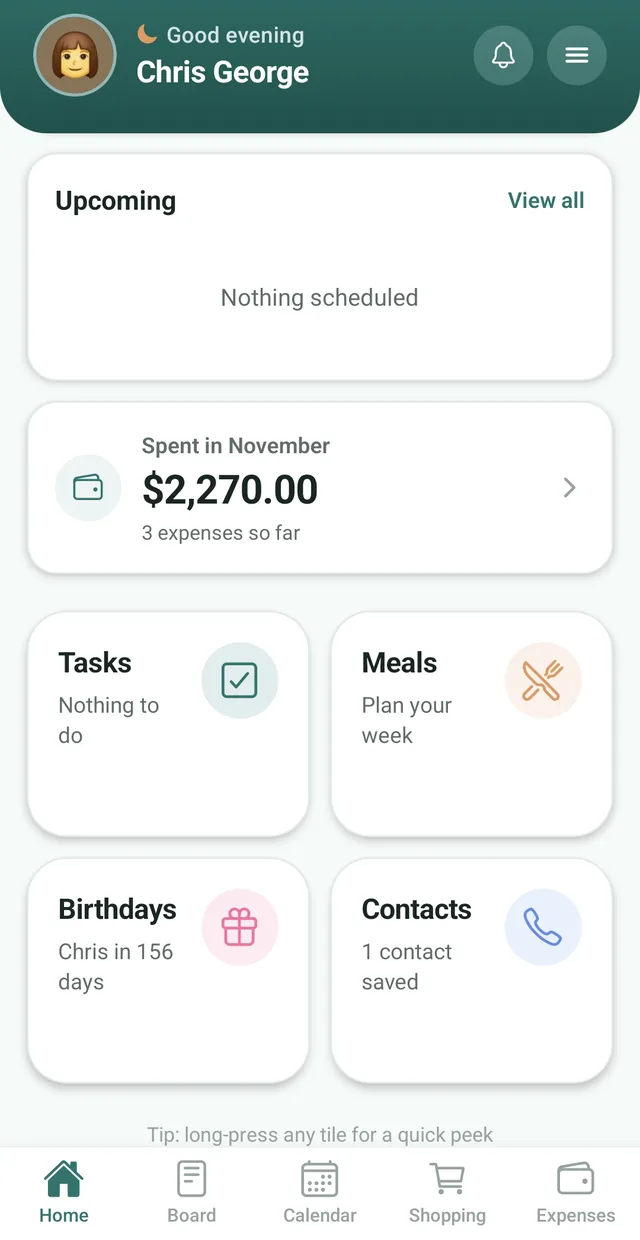
The bell opens a panel with your family’s notifications from the last 5 days, newest first. Each one shows who sent it, with an icon for its kind, and when. The bell shows a count of the ones you have not seen yet, and tapping a notification takes you to the right place: the shopping list, the event, the task, the Board post, Bills or Budgets.
It updates live and keeps the same notifications as push, so someone who turned push notifications off can still catch up. Each kind has its own switch on the Family screen under Notifications.
A new spending card under Upcoming shows the month so far and how it compares with last month, for everyone. Premium families also see the single most important line, in this order: a budget that has been passed, then a bill that is due, then the top insight. Home refreshes when you come back to it.
About the bell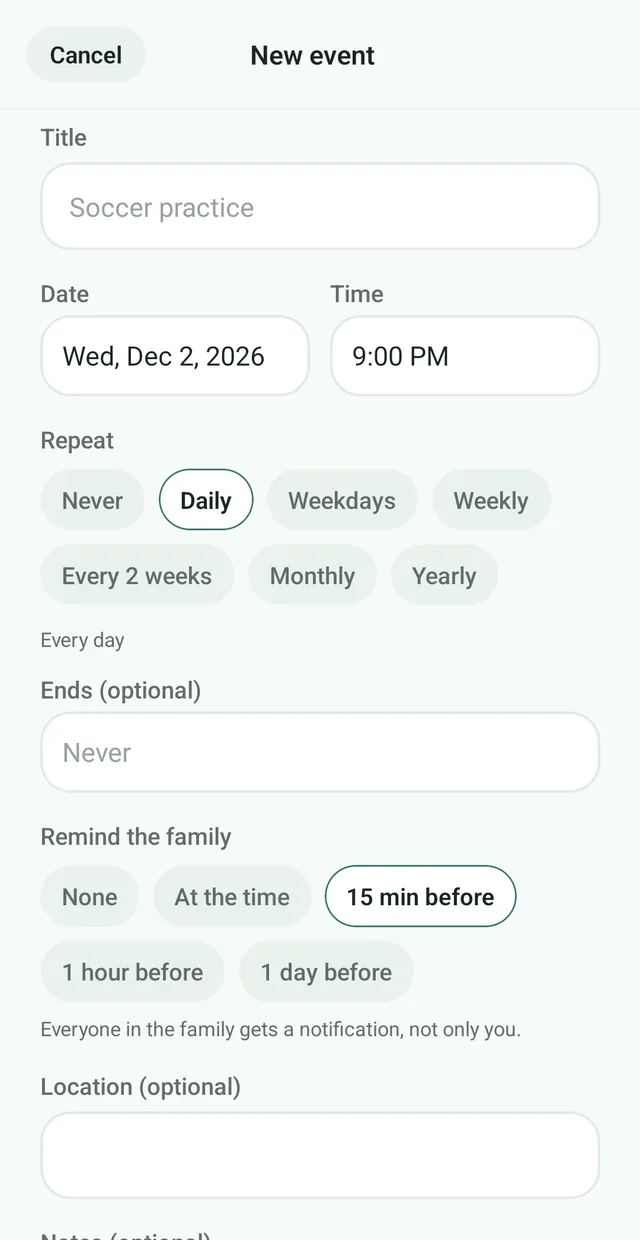
When you add or edit an event, a reminder or a task, choose how often under Repeat: daily, on weekdays, weekly on the days you pick, every 2 weeks, monthly or yearly. You can also set a date for it to end.
A repeating event shows on all of its dates in the calendar’s month view. A repeating task comes back with its next due date each time someone ticks it off, and Nest takes it back if it is un-ticked.
Calendar reminders go to the whole family at the time chosen under Remind the family: 15 minutes before by default, at the time, or none. They come from the server, so they arrive even if the person who made the event has their phone off.
See the family calendarEvery notification goes to your phone and to the bell on Home, and each kind has its own switch on the Family screen under Notifications.
| Notification | Who gets it | When | Switch |
|---|---|---|---|
| New shopping items | Everyone except the person adding | One message about 5 minutes after they stop adding (15 at most from the first item) | Shopping list |
| “[Name] is at the store” | Everyone except the shopper | Straight away. Items added in the next hour arrive within a minute or two | Shopping list |
| Calendar reminders | The whole family | At the time chosen under Remind the family: 15 minutes before by default, at the time, or none | Calendar |
| A task given to you | The person given the task | Straight away | Tasks |
| Tasks due today | The person the task is given to | 9 am in the family’s time zone | Tasks |
| Bills due today | The family | 9 am on the due day | Bills |
| A Board post is pinned | The family | Straight away | Board |
| A budget is nearly used | The family | When it reaches 80%, once per budget per month | Budgets |
| A budget is passed | The family | When spending goes over it, once per budget per month | Budgets |
| Monthly summary | The family | 9 am on the 1st, about last month’s spending | Budgets |
The expense tracker, balances, I’m at the store, the bell and your currency are free. The money tools that need more are part of Nest Premium, which is one subscription for the whole family. See pricing.
So “9 am” and “every Monday at 5 pm” are right wherever the family lives. The first phone to open the new version sets it, and an admin can change it on the Family page.
Type a description and Nest suggests a category. Anyone can change it later under Recent with Change category.
Tap a slice of the chart or a category on the Overview to see the expenses that make it up.
The Overview lets you look at the months before this one.
Return to Home and it updates, so the numbers are current.
A new family starts in the currency of the phone region of whoever creates it, and an admin can change it.
Invite links work for 24 hours. A link from a family admin lets people join straight away. The family code, or a link from a member who is not an admin, creates a request an admin approves.
Learn more Reset code and linksAdmins can stop the current family code and every link they shared at once from the Family screen.
Learn more Sign in with Apple and GoogleCreate your account in one tap with Apple or Google, alongside email.
Learn moreNest 2.0 adds shared family budgets, bills with reminders, spending insights, a rebuilt expense tracker with Overview, Recent, Balances and Bills tabs, an I’m at the store alert, a notification bell on Home, repeating events, reminders and tasks, calendar reminders for the whole family and a currency picker.
The update is free to install. Expense tracking, balances, I’m at the store, the notification bell and your currency are free. Budgets, bills, insights, the month by month chart, who paid what and repeating events, reminders and tasks are part of Nest Premium, which is $2.99 a month or $24.99 a year and covers the whole family.
Open the App Store or Google Play, search for Nest: Family Organizer and tap Update. If your phone updates apps automatically, you may already have it.
On the Shopping tab, tap I’m at the store and everyone else in your family gets a notification so they can add anything you forgot. For the next hour, items they add reach you within a minute or two. It is free for every family with more than one member.
The bell opens your family’s notifications from the last 5 days, newest first, with a count of the ones you have not seen. It keeps the same notifications as push, so you can catch up even if you turned push notifications off.
On the Overview tab, tap Set a budget, choose a category and an amount for each month, or set one amount for the whole month. Nest counts expenses against it, shows what is left, and tells the family when a budget reaches 80% and when it is passed. Budgets start again on the 1st. Budgets are part of Nest Premium.
No. Nest does not connect to your bank. You add expenses yourself, and Nest does not collect or store credit card or bank account numbers.
The Help Center has step by step answers for budgets, bills, insights, I’m at the store, the bell, repeating events and the rest of Nest 2.0.

Free for up to 3 family members. No ads on any plan, and notifications are the only permission it needs.