 Nest
Events and reminders
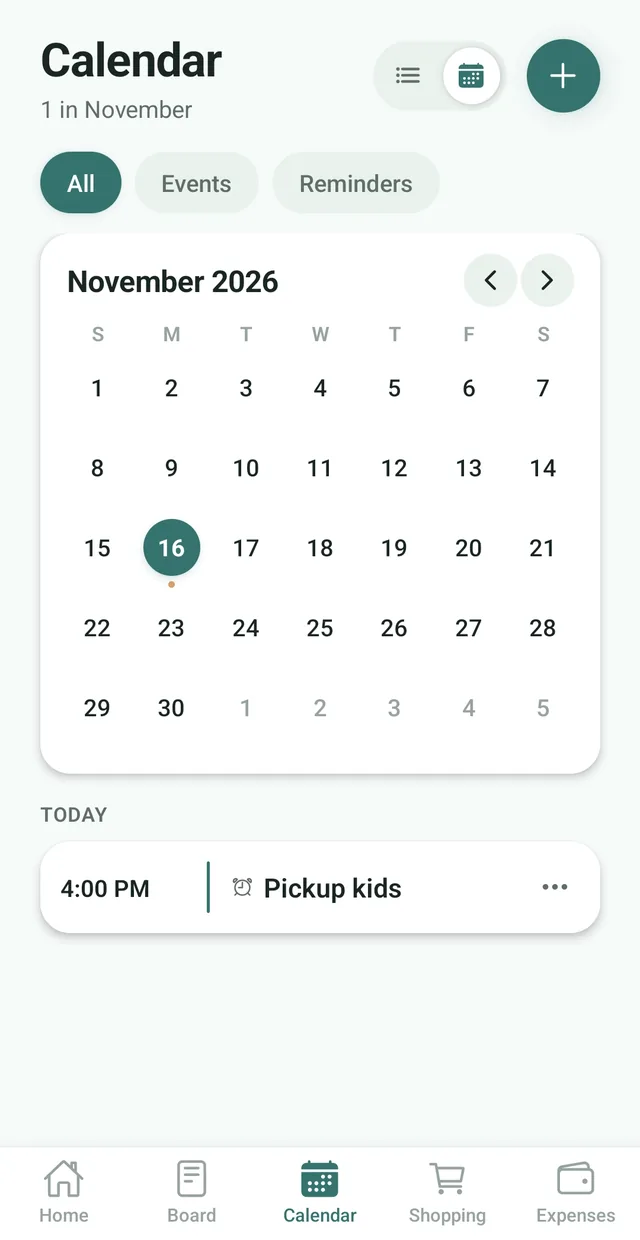
Add events the whole family can see, or turn on Reminder mode to keep one on the Reminders tab instead. Filter by All, Events or Reminders.
One calendar for the whole family, on every phone. See what is coming up the moment you open Nest, with a reminder that goes to everyone, not just you.
Free for up to 3 family members, with no ads. Available on iPhone and Android.
Add events the whole family can see, or turn on Reminder mode to keep one on the Reminders tab instead. Filter by All, Events or Reminders.
Add chores and to dos with due dates, assign them, and tick them off together.
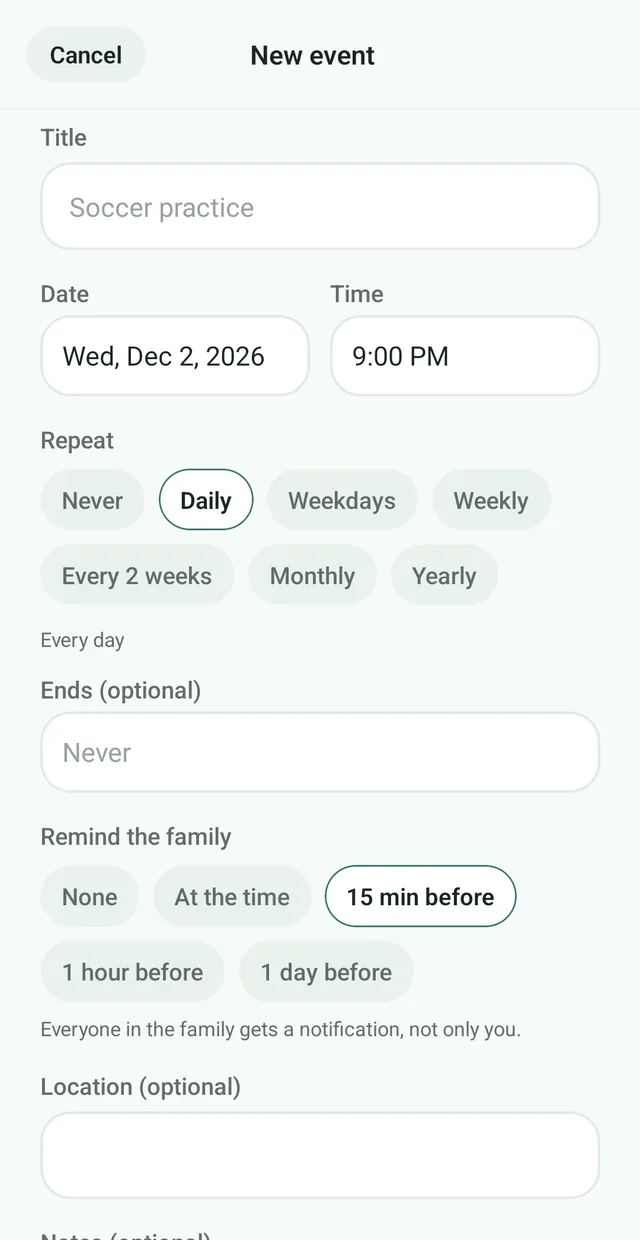
Choose none, at the time, 15 minutes, 1 hour or 1 day before. Everyone in the family gets the notification, not only you.
Family life runs on dates and jobs: appointments, school events, birthdays, trash night, the car service. When those live in one person’s head or one person’s phone, things slip.
Nest puts a shared calendar and a shared task list in the same app your family already uses for shopping and meals. The Calendar tab shows the month at a glance, with a small dot under each day that has something on and that day’s events and reminders listed below. Switch to the list view to scroll through everything coming up.
When you add an event, choose Remind the family: none, at the time, 15 minutes, 1 hour or 1 day before. The reminder comes from the server and goes to everyone, so it arrives even if the person who made the event has their phone off. With Nest Premium, events, reminders and tasks can repeat daily, on weekdays, weekly on the days you pick, every 2 weeks, monthly or yearly, with an optional end date, and a repeating event shows on every one of its dates in the month view. See how shared chores and to dos work in Nest.
Appointments and plans you both see, without asking “did you book it?”.
See Nest for couples For busy parentsSchool events, activities and dentist visits on one shared calendar.
See Nest for busy parents For families with teensChores ticked off without nagging, and practice times everyone can see.
See Nest for families with teensNeed more detail? The Nest Help Center has step by step guides.
Tap the Calendar tab, then the plus button, and give it a title, date and time.
Open the Tasks tile on the Home screen and tap the plus button.
Mark tasks as done so the whole family can see progress.
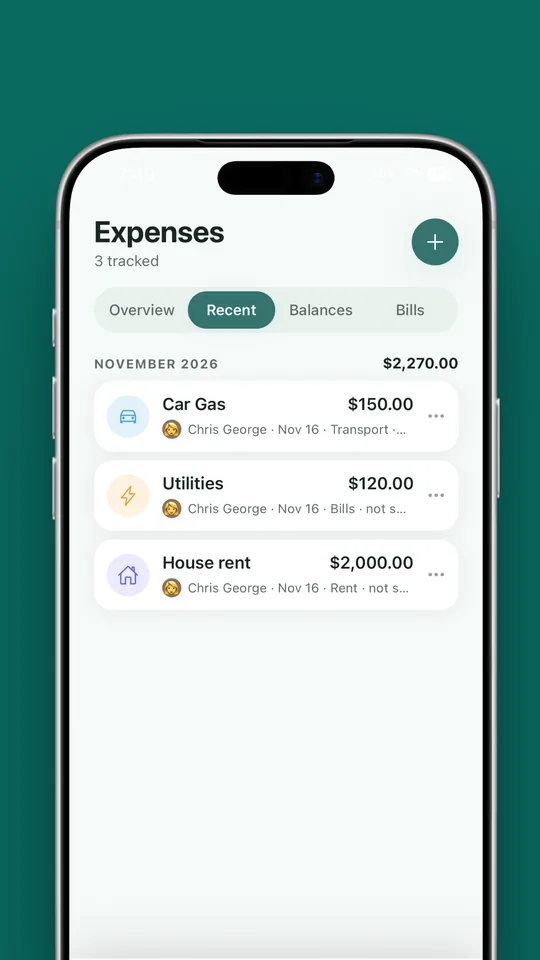
Rent day, insurance and utility bills should not clutter your calendar, and they should not be forgotten either. Nest gives them their own place in Expenses, with reminders.
Yes. The Calendar tab is shared with everyone in your family on Nest, and upcoming events also appear on the Home screen.
Tap the Calendar tab, then the plus button, and enter a title, date and time.
Yes. Add tasks with due dates, assign them and tick them off when they are done. The free plan includes 5 active tasks at a time, and Nest Premium unlocks unlimited tasks and assigning to any family member.
Yes. Switch on Add to phone calendar when you create an event and Nest also saves it to your phone’s own calendar. It is a one way sync: Nest adds events and does not read your calendar, and your phone asks for calendar permission first.
Yes. When you add an event you choose Remind the family: none, at the time, 15 minutes, 1 hour or 1 day before. Everyone in the family gets the notification, not only the person who made the event.
The Upcoming card on the Home screen lists what is scheduled soon. Tap View all to see everything.
Yes. The shared calendar, events, reminders and family-wide alerts are free for families of up to 3 members. Repeating events, reminders and tasks come with Nest Premium.
Yes. The calendar holds both. Turn on Reminder mode when you add something and it shows on the Reminders tab instead of the calendar. You can filter the calendar to show All, Events or Reminders.
Yes, with Nest Premium. Under Repeat, choose daily, on weekdays, weekly on the days you pick, every 2 weeks, monthly or yearly, and set an optional end date. A repeating event shows on every one of its dates in the month view.
Yes. Use the toggle at the top of the Calendar tab to switch between the month view and a list.
Yes. In Family settings, under Notifications, switch the Calendar notifications off or on.
No. Nest has no ads anywhere in the app, including the calendar, on the free plan or on Premium.
Nest has no ads and does not connect to your bank. It needs only permission to send notifications, and its privacy policy states that it does not sell your personal information. Content you add is visible to the members of your family.
Free for up to 3 members, with no ads. Download it today on iPhone or Android.