 Nest
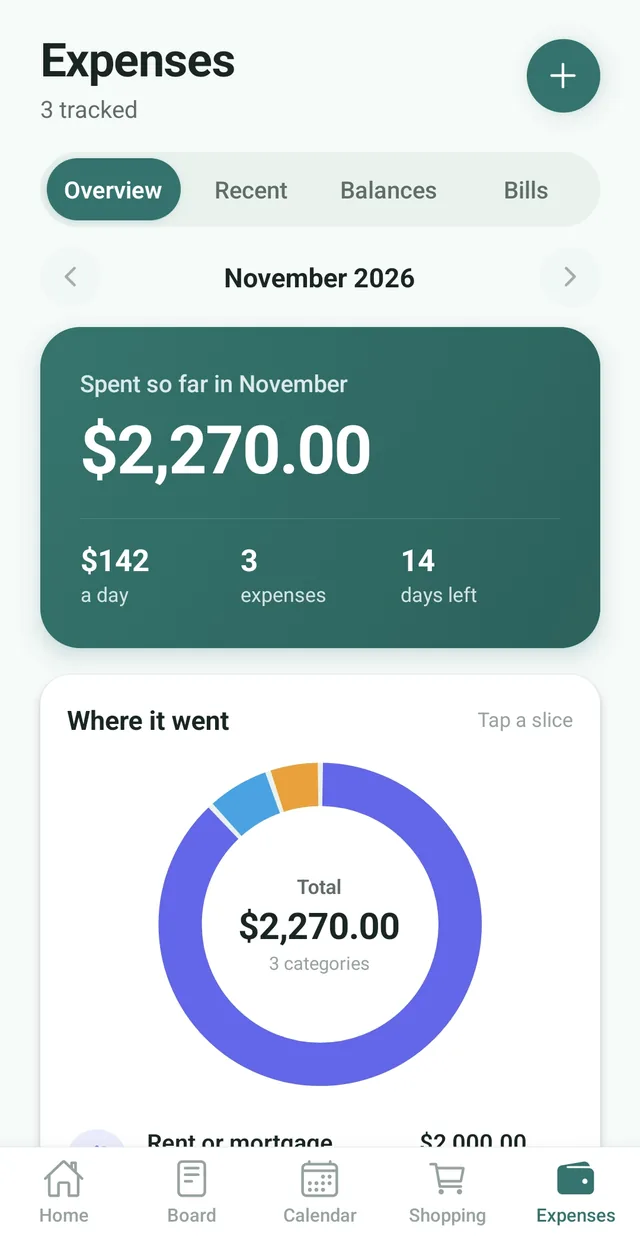
See where it went
A chart splits the month into categories and the Overview compares it with last month, so nobody has to guess where the money went.
Add what the household spends, see it by category and by month, and let Nest work out who owes who. Everyone in the family sees the same numbers.
Free for up to 3 family members, with no ads. Available on iPhone and Android.
A chart splits the month into categories and the Overview compares it with last month, so nobody has to guess where the money went.
Share a cost with the family, or record it as your own so it counts in spending without anyone owing anything.
Balances shows who is owed and who owes, with the fewest payments that settle everyone up.
Household money is easier to talk about when everyone is looking at the same numbers. Nest keeps a shared record of what the family spends, right next to the shopping list and meal plan that drive much of it.
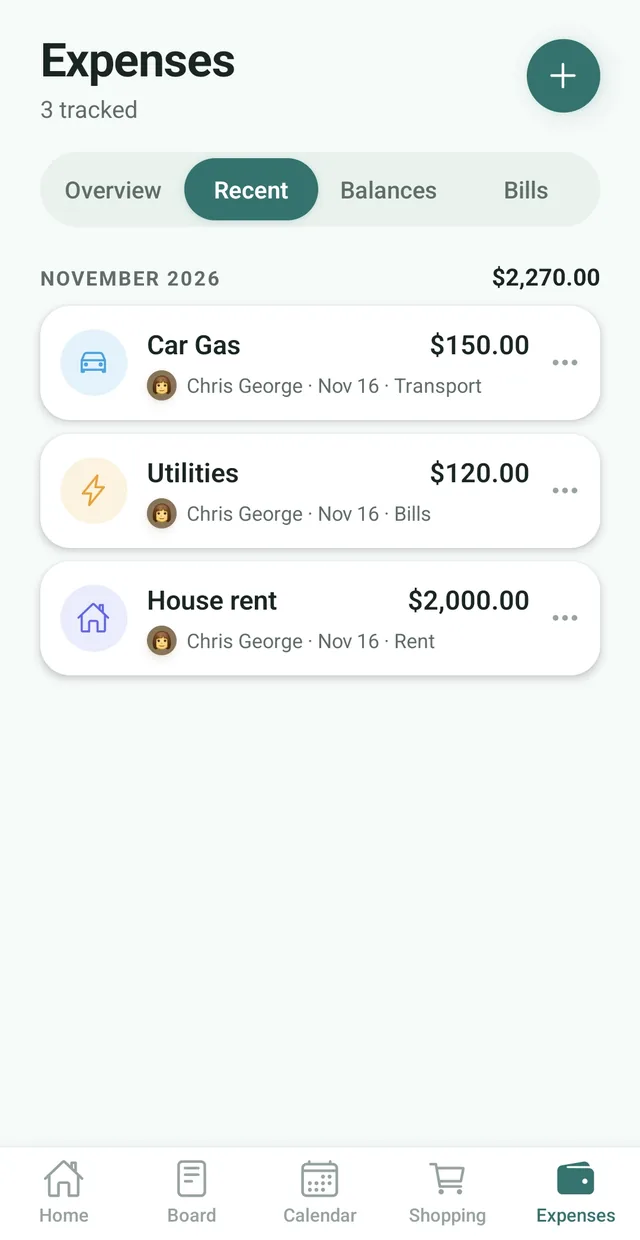
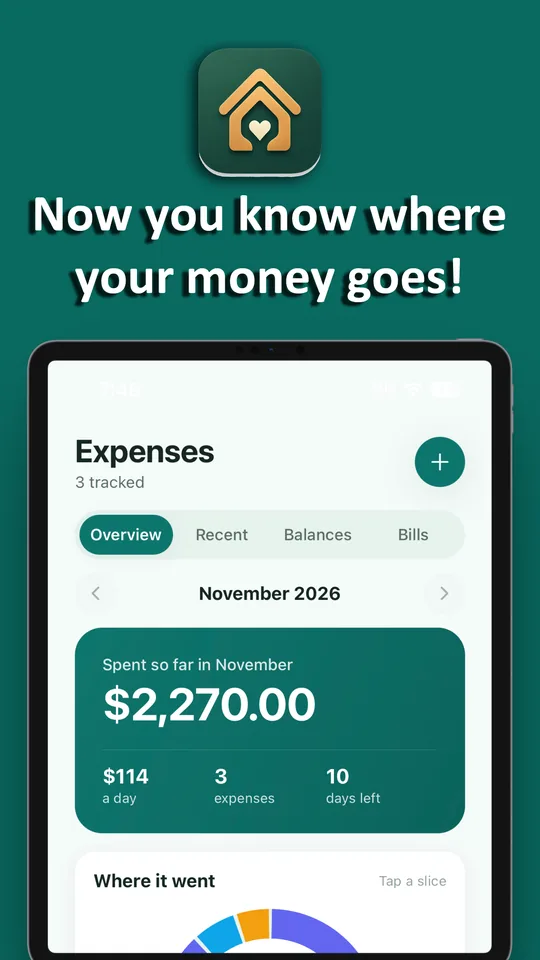
The Overview tab shows the month so far and how it compares with last month, with a chart of where the money went. Tap a slice or a category to see the expenses behind it, and step back through earlier months. Nest has 12 categories, from groceries and rent or mortgage to kids, health and travel, and anyone can move an expense to a different category.
The Balances tab shows each family member as owed or owing, plus the fewest payments that settle everyone up. Mark a payment as paid and the balances update. Expenses saved with Just record it do not count towards balances. To set monthly limits, track bills and see insights, see family budgets and bills, which come with Nest Premium.
Need more detail? The Nest Help Center has step by step guides.
Tap the Expenses tab, then the plus button, and enter what it was for and the amount. Nest suggests a category as you type.
Choose Split with the family to share the cost, or Just record it to keep it as your own.
See the month so far, how it compares with last month and where the money went.
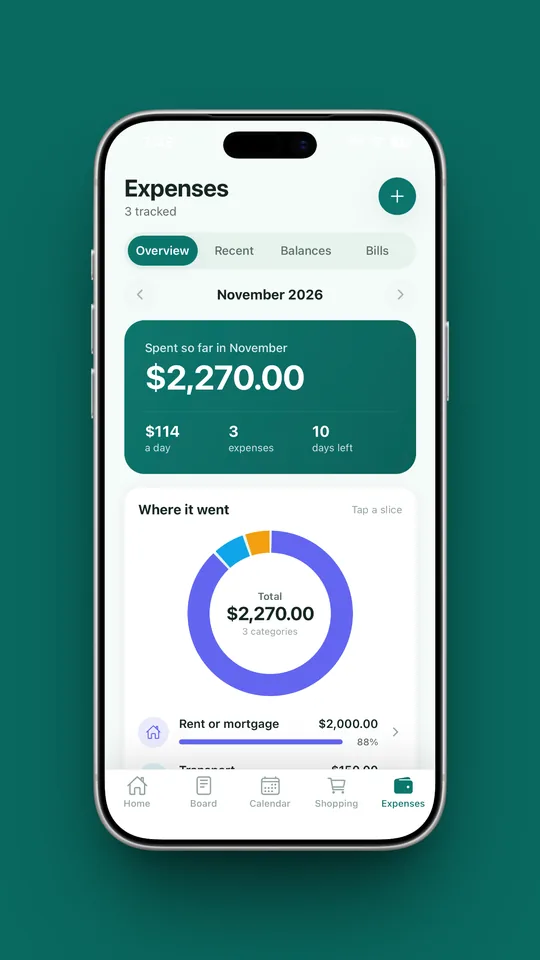
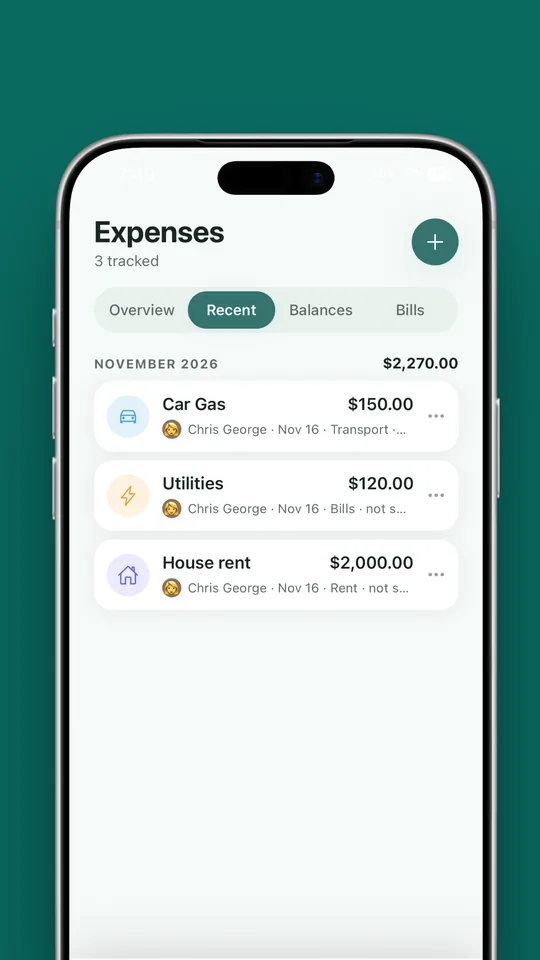
The Overview, Recent and Balances tabs, as they look in the App Store.
Yes. The Expenses tab tracks shared costs, shows where the money went and works out who owes who.
Yes. Choose Split with the family when you add an expense to share the cost, and Nest works out who owes who. Choose Just record it to keep an expense as your own.
Tap the Expenses tab, then the plus button, and enter what it was for and the amount. Nest suggests a category as you type, so a description such as Costco becomes Groceries.
Yes. The Overview tab shows the month so far, how it compares with last month and a chart of where the money went. Tap a slice of the chart or a category to see the expenses behind it. Free families see their top three categories, and Premium shows every category.
Nest has 12 categories: groceries, rent or mortgage, bills and utilities, transport, eating out, kids, health, insurance, entertainment, shopping, travel and other. Anyone can move an expense to a different category by tapping it under Recent and choosing Change category.
Balances shows each family member as owed (a plus) or owing, then suggests the fewest payments that settle everyone up, such as one person paying another. Tap Mark paid on a payment and the balances update. Expenses saved with Just record it do not count.
Only the person who paid can edit or delete an expense. Anyone in the family can move it to a different category.
Yes. A family admin opens the Family screen and taps Currency under Manage, then picks from more than 50 currencies. Every amount in Expenses, Bills and Budgets is shown in the new currency for the whole family. The numbers stay as they are, so nothing is converted.
Yes. Adding expenses, all 12 categories, Recent, Balances, the month total and its comparison with last month, the top three categories and your currency are free. Budgets, Bills, insights, the month-by-month chart, every category on the Overview and who paid what come with Nest Premium.
Expenses you split with the family are shared with the members of your family on Nest, and everyone sees the same month total.
No. Nest has no ads anywhere in the app, including the expense tracker, on the free plan or on Premium.
Nest has no ads and does not connect to your bank. It needs only permission to send notifications, and its privacy policy states that it does not sell your personal information. Content you add is visible to the members of your family.

Free for up to 3 members, with no ads. Download it today on iPhone or Android.