 Nest
NestHow can we help?
Simple, step-by-step guides for everything in Nest. Search, or pick a topic below.
No answers found
Try a different word, or contact us and we'll help you directly.
Getting started
Everything you need to go from download to your first shared notice.
How do I download Nest?
Nest is available for iPhone and Android phones.
- On iPhone, open the App Store. On Android, open Google Play.
- Search for Nest and tap Get / Install.
- Open the app once it has finished installing.
You can also use the download buttons on the home page.
How do I create an account?
- Open Nest and tap Create account (or Sign up) on the welcome screen.
- Enter your name, your email address and choose a password.
- Follow the on-screen prompts to confirm your details.
- Choose a profile picture or avatar if you'd like, you can change it later in My profile.
Next, you'll either create a family or join one you've been invited to.
How do I set up my family?
Your family is the shared space where everything in Nest lives: notices, lists, meals and more. The person who creates it becomes its admin.
- After signing in for the first time, choose to create a new family.
- Give your family a name. It appears at the top of your Home screen next to the member count.
- Tap continue. Your Home screen opens, ready to use.
- Invite the people you live with. See How do I invite someone?
How do I join a family I've been invited to?
- Ask a family member to share their invite from Share invite (see inviting someone).
- Download Nest and create your account.
- When asked, choose to join a family and enter the invite code you received, or open the invite link on your phone.
- You're in! The family's notices, lists and plans appear straight away.
Is Nest free?
Yes. Nest is free for up to 3 members. If your family is bigger, a family admin can upgrade to Nest Premium to add more people and unlock everything.
The Home screen
Home is your family's dashboard, a quick view of what's next and shortcuts to everything else.
What's on the Home screen?
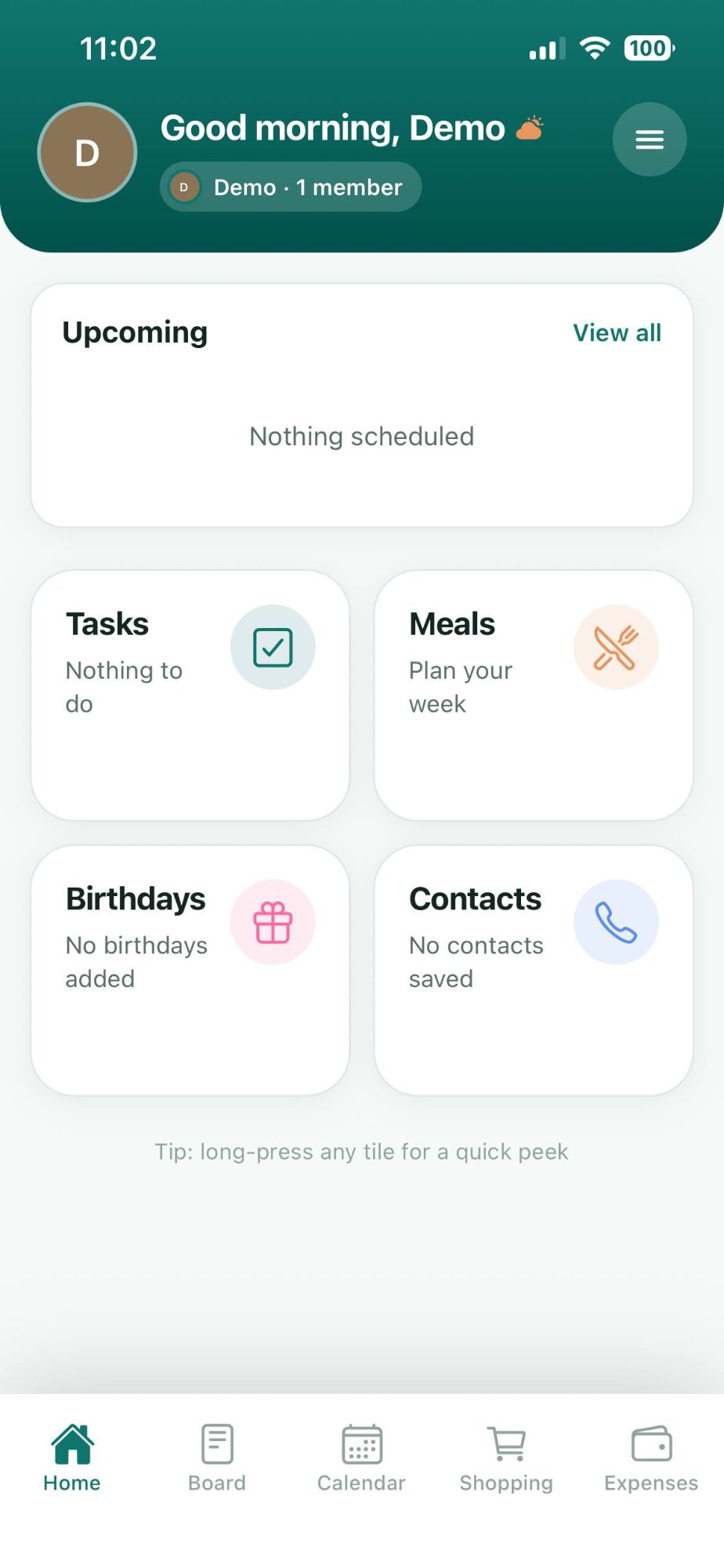
- Greeting & family: your name and avatar, with your family name and member count underneath.
- Menu button: the round button at the top right opens your family settings, invite, members, profile and help.
- Upcoming: everything scheduled soon. Tap View all to see it all.
- Tiles: Tasks, Meals, Birthdays and Contacts give you a summary and open the full feature when tapped.
- Bottom tabs: jump between Home, Board, Calendar, Shopping and Expenses.
What is a "quick peek"?
Press and hold any tile on the Home screen to preview what's inside without opening it. Let go to dismiss.
Notice Board
Share news, ask questions and make sure important things don't get lost.
How do I post a notice?
- Tap the Board tab at the bottom of the screen.
- Tap the round + button at the top right.
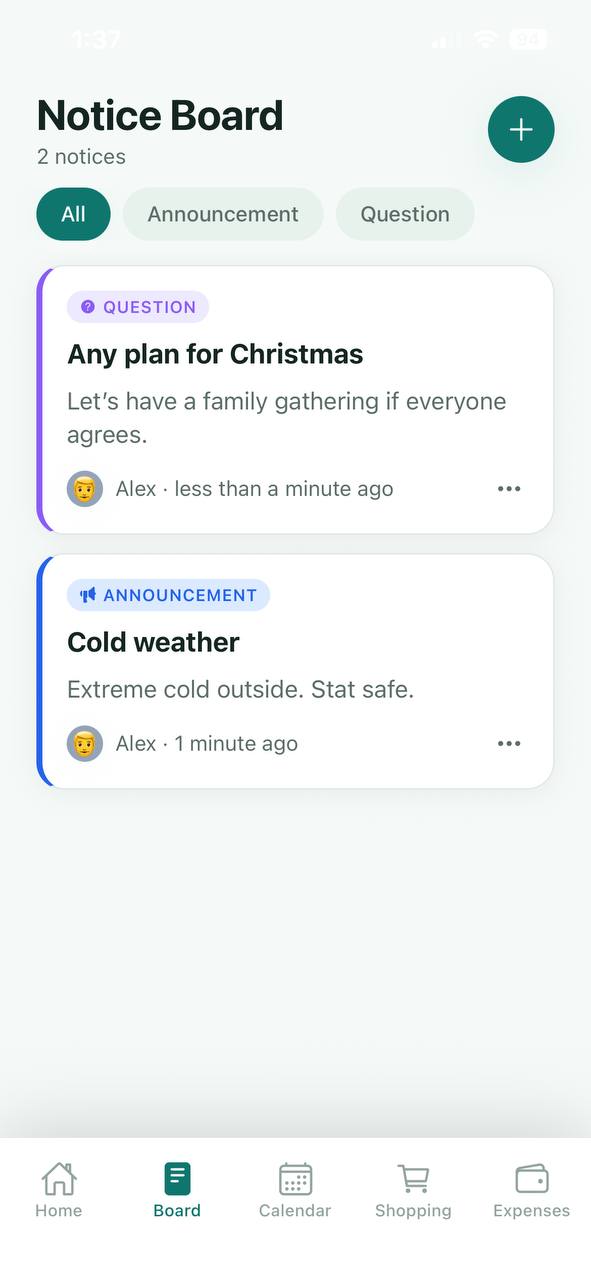
- Choose a Type: for example Announcement or Question.
- Enter a Title and add any Details.
- Post it. Everyone in your family can see it right away.
Tap Cancel at the top left at any time to discard a notice you've started.
What are the notice types?
Each notice has a colour-coded label so everyone knows at a glance what it's about:
How do I filter the board by type?
Under the Notice Board title is a row of filter chips: All followed by the types that are in use. Tap a chip to see only that type, and tap All to see everything again.
How do I edit or delete a notice?
- Find your notice on the board.
- Tap the ••• menu at the bottom right of the notice.
- Choose to edit or delete it.
Each notice shows who posted it and when, so everyone knows where it came from.
Shopping lists
One shared list the whole family can add to, from the sofa or the supermarket.
How do I add an item?
- Open the Shopping tab.
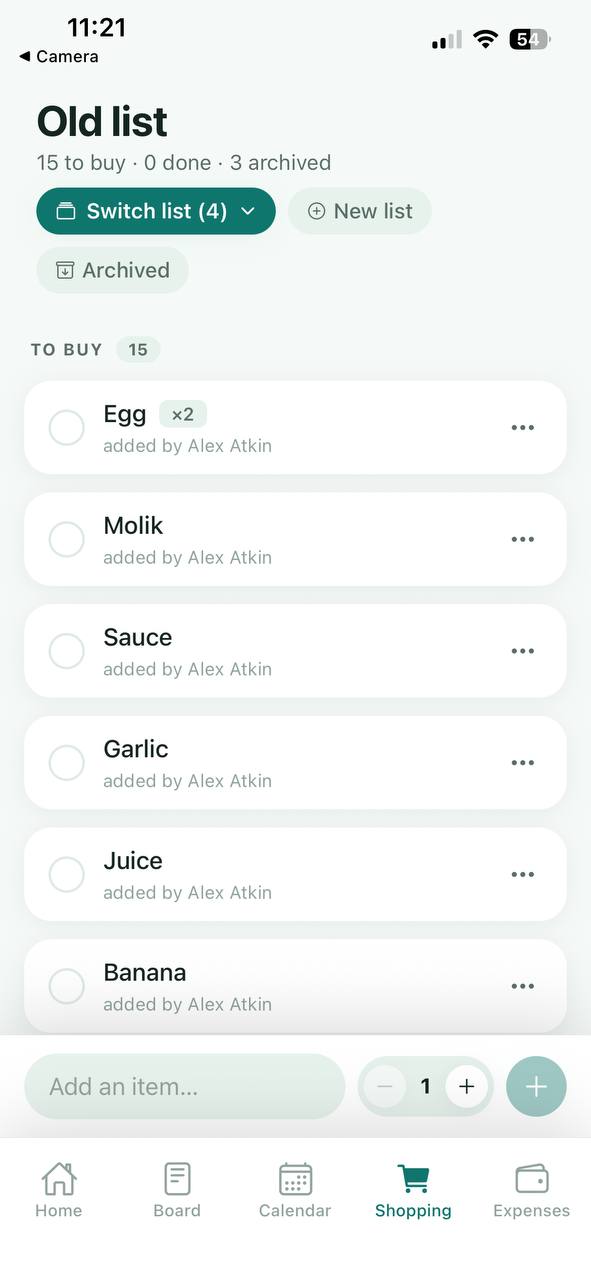
- Type the item into the Add an item… field at the bottom.
- Need more than one? Use the minus and plus buttons next to the quantity to set how many you need.
- Tap the round + button to add it.
Items with a quantity above one show a small badge, such as ×2. Under each item you'll see who added it.
How do I tick something off?
Tap the circle to the left of an item to mark it as bought. The header keeps count, for example "4 to buy · 1 done".
Can I have more than one list?
Yes, keep separate lists for the weekly shop, a party or the hardware store.
- Tap Switch list near the top to move between lists. The number in brackets shows how many you have.
- Tap New list to create another one and give it a name.
What does Archive do?
Archiving moves finished items out of your active list without deleting them. The header shows how many you've archived (for example "15 to buy · 0 done · 3 archived") and the Archived button lets you look back through them.
Can I add ingredients from my meal plan?
Yes, see Send ingredients to Shopping in the Meal Planner section.
Meal Planner
Decide what's for dinner once, and turn it into a shopping list in a tap.
Where do I find the Meal Planner?
Tap the Meals tile on the Home screen. Use the back arrow at the top left to return to Home.
How do I plan a meal?
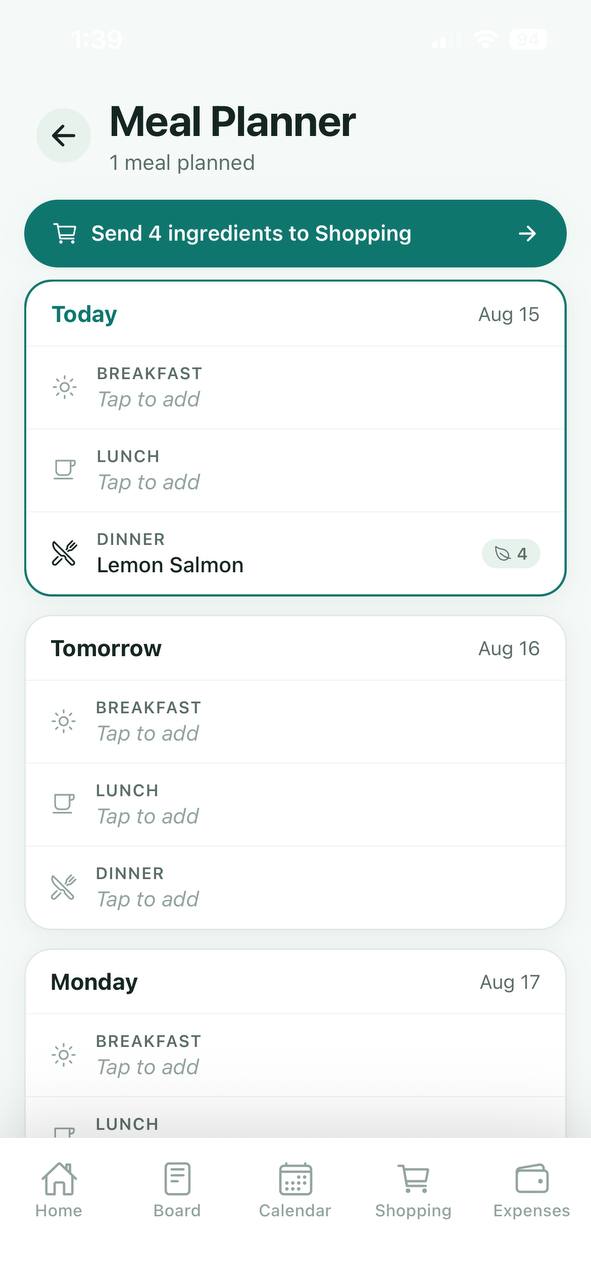
- Open Meal Planner. You'll see the week as a list of days, starting with Today.
- Each day has Breakfast, Lunch and Dinner. Tap Tap to add on the slot you want to fill.
- Enter the meal name and its ingredients, then save.
Meals with ingredients show a small leaf badge with the number of ingredients, such as 4.
How do I send ingredients to Shopping?
- Plan your meals and add their ingredients.
- At the top of the Meal Planner, tap the green Send ingredients to Shopping button. It tells you how many items will be sent.
- Open the Shopping tab to find them on your list.
Do this once a week before your food shop to avoid forgetting anything.
How do I change or remove a meal?
Tap the meal in the planner to edit its name or ingredients, or to clear the slot.
Calendar & Tasks
Keep track of what's happening and who's doing what.
How do I use the Calendar?
- Tap the Calendar tab at the bottom of the screen.
- Tap a date to see what's planned that day.
- Use the + button to add a new event, then give it a title, date and time.
Upcoming events also show up on the Upcoming card on your Home screen.
How do I add and complete tasks?
- Tap the Tasks tile on the Home screen.
- Add a new task with the + button.
- Tick it off when it's done so the whole family can see progress.
When there's nothing left, the tile on Home reads "Nothing to do".
Expenses
A shared place to keep track of what the household spends.
How do I record an expense?
- Tap the Expenses tab at the bottom of the screen.
- Tap + to add a new expense.
- Enter what it was for and the amount, then save.
Expenses are visible to your family members, so everyone shares the same picture.
Birthdays & Contacts
Dates to celebrate and numbers to have at hand.
How do I add a birthday?
- Tap the Birthdays tile on the Home screen.
- Tap the round + button at the top right.
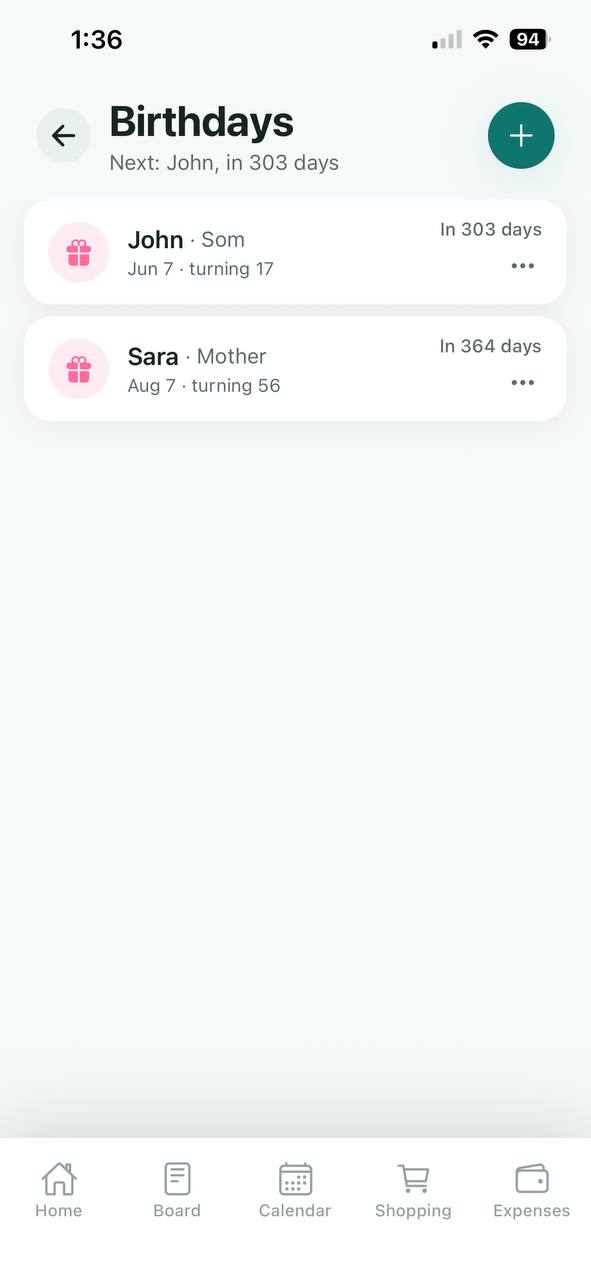
- Enter the person's name, their relationship (for example Mother) and their date of birth.
- Save. They appear in the list with a countdown and the age they're turning.
The subtitle always shows who's next, for example "Next: John, in 303 days".
How do I edit or remove a birthday?
Tap the ••• menu on the right of the birthday and choose what you'd like to do.
How do I save a contact?
- Tap the Contacts tile on the Home screen.
- Tap + and enter a name and phone number.
- Save it and your whole family can find it.
Great for the school, the doctor, the plumber and emergency numbers.
Family & members
Invite the people you live with and see who's in your family.
How do I invite someone?
- On the Home screen, tap the round menu button at the top right.
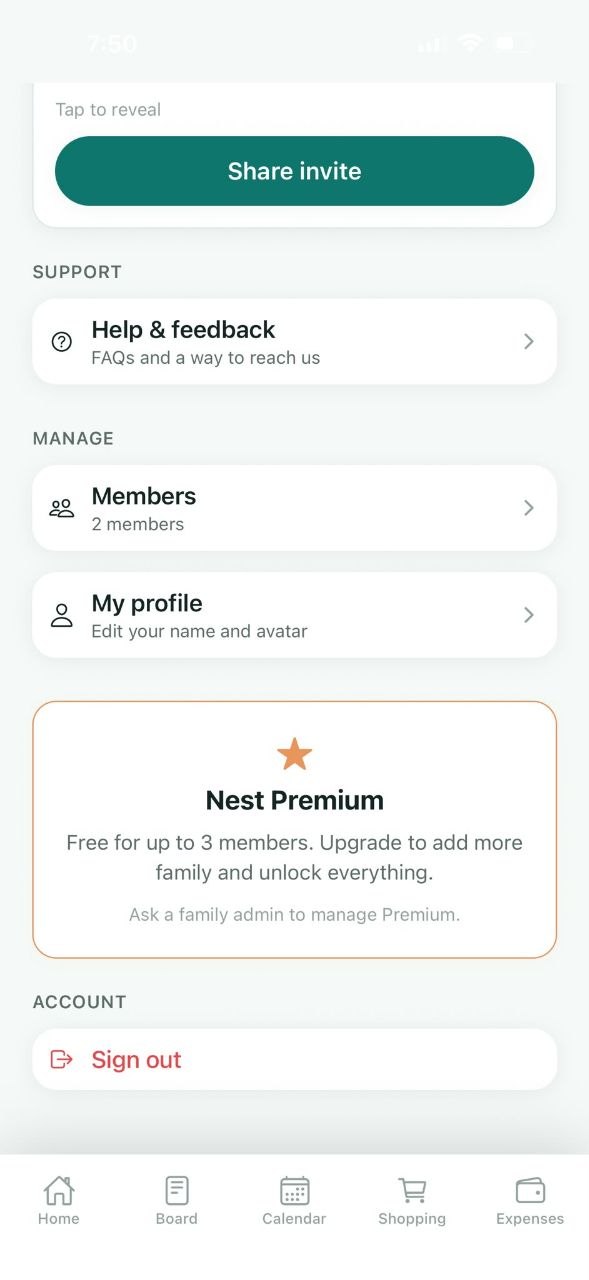
- Find the invite card. Tap Tap to reveal to show your family's invite code.
- Tap Share invite and send it by message, email or any app you like.
- Your family member installs Nest, creates an account and enters the code. See joining a family.
Only share your invite with people you trust. Anyone with the code can join your family.
How do I see who's in my family?
Open the menu from Home and tap Members under Manage. You'll see everyone in the family and the total member count.
Why can't I add more members?
The free plan supports up to 3 members. To add more, a family admin needs to upgrade to Nest Premium.
Account & profile
Make Nest yours.
How do I change my name or avatar?
- Open the menu from the Home screen.
- Under Manage, tap My profile: Edit your name and avatar.
- Update your details and save.
How do I sign out?
- Open the menu from the Home screen.
- Scroll to the bottom and tap Sign out under Account.
Your family's information stays safe. Sign back in any time to pick up where you left off.
Where can I send feedback?
In the app's menu, tap Help & feedback under Support for FAQs and a way to reach us. You can also email us.
Troubleshooting
Something not working as expected? Try these first.
My family's changes aren't showing up
- Check that your phone has a working internet connection.
- Close Nest completely and open it again.
- Make sure you're on the latest version from the App Store or Google Play.
- If it's still not right, sign out and back in.
The invite code isn't working
- Check the code carefully, and copy and paste it if you can.
- Ask the family member to reveal and share a fresh invite from their menu.
- If the family is full on the free plan, a family admin will need to upgrade to Premium.
I can't sign in
- Double-check your email address and password.
- Use the Forgot password option on the sign-in screen to reset it.
- Still stuck? Contact us and we'll help.
The keyboard hides the field I'm typing in
Scroll the screen up slightly while the keyboard is open, or tap outside the field to close the keyboard once you've finished typing.
Still need a hand?
Can't find what you're looking for? Send us a message and a real person will get back to you.